AI Engineering Fluency: tracking your AI coding habits
I’ve been building an extension that gives you insights into your AI usage when coding — how many tokens you consume, which models you prefer, how you structure your prompts, and what your environmental footprint looks like. It’s called AI Engineering Fluency and I recorded a walkthrough video showing what it does.
What it does
After installing the extension, it reads local log files from your AI editors — VS Code, Copilot CLI, Claude Code, Gemini CLI, Cursor, Crush, Mistral, and more. Everything stays on disk. Nothing leaves your machine unless you opt in to cloud sync.
The extension crawls those session logs and figures out what you’ve been doing with AI on that machine. It then groups the data to give you an overview right in the status bar: today’s token usage and a 30-day rolling total.
Token tracking and usage charts
Clicking the status bar icon opens a detailed panel showing:
- Total tokens used today vs. last 30 days
- Number of distinct working sessions
- Interactions per session and tokens per session
- Breakdown by editor (VS Code, Copilot CLI, Claude Code, etc.)
- Breakdown by model (Claude Opus, Claude Sonnet, Mistral, GPT, etc.)
- Estimated cost over time based on token usage
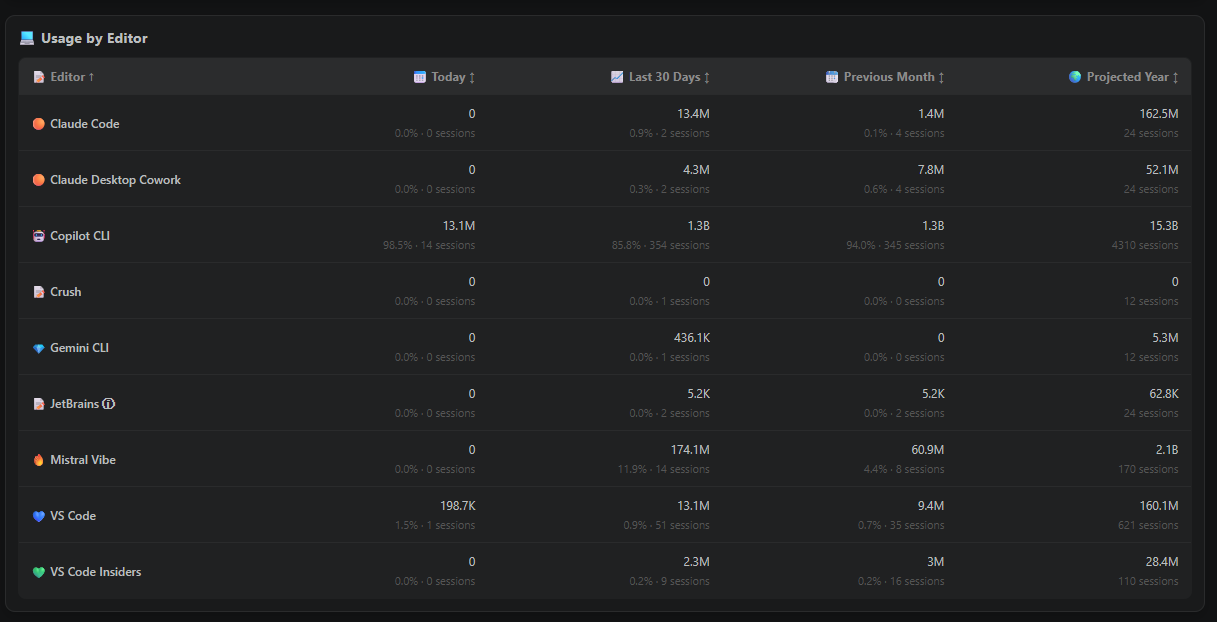
On the day I recorded the walkthrough, I had already hit 23 distinct working sessions and gone through over 120 million tokens across different tools. You can view charts per day, per week, or per month. I noticed my own usage has been following a hockey stick pattern since November — it just keeps going up. The charts also let you slice by model, editor, or even repository.
The dashboard also breaks activity down by mode. In my case, a lot of sessions happen in CLI tools and agent mode, but I still use ask mode for direct questions. That distinction matters because not every AI interaction is the same kind of work.
Multi-model usage insights
One of the more interesting findings: 18% of my sessions in the last 30 days used more than one model. The maximum was five different models in a single session. I apparently switch between heavier models for planning and lighter ones for implementation — something I wasn’t fully aware of until I saw the data.
Environmental impact
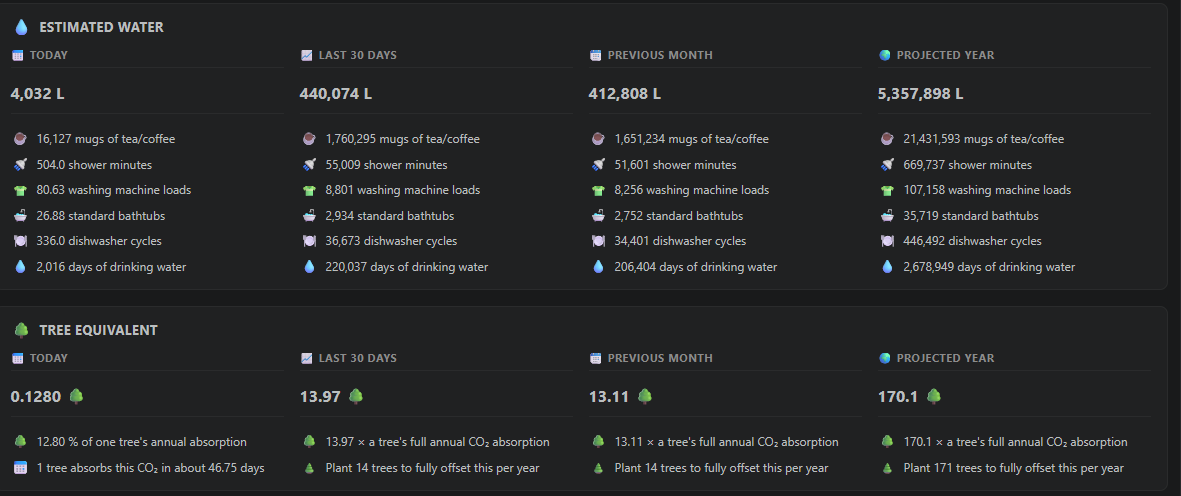
Since we have all this token data, the extension also estimates your environmental footprint. CO2 consumption, water usage, and equivalent metrics like “how far could you drive a car” or “how many smartphone charges is that.” These numbers are estimates based on public data for model/provider energy and water usage, so I treat them as directional rather than exact. The eye-opener for me was the estimated water consumption and the number of trees needed to offset my CO2 usage. There’s compute in a data center somewhere being consumed every time you send a prompt — this makes that visible.
The Fluency Score
The real payoff is what we call the Fluency Score. It maps your usage patterns against six aspects of AI engineering:
- Prompt Engineering — Do you use multi-turn sessions? Do you mix ask mode with agent mode?
- Context Engineering — Are you explicitly adding context to conversations?
- Agentic — Do you use agent mode and autonomous features?
- Tool Usage — Are you using built-in tools and MCP servers?
- Customization — Have you configured model selection and repo-level settings?
- Workflow Integration — Do you use AI regularly across different modes?
Each aspect has four stages (Skeptic, Explorer, Collaborator, Strategist). The score highlights where you’re strong and where you have room to grow — with links to documentation and short videos so you can learn about features you might not know exist.
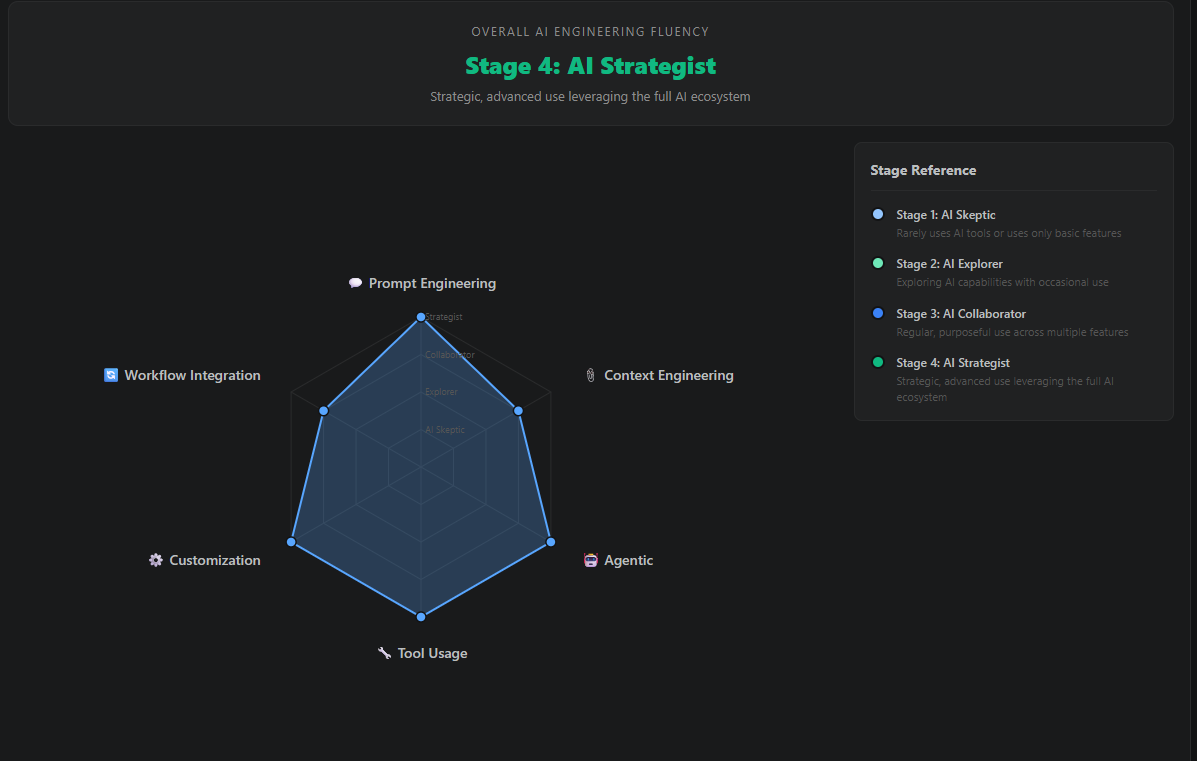
For example, my prompt engineering is at stage four because I do multi-turn sessions with an average of 4.8 exchanges. But my context engineering could use work — I could be more explicit about adding files and symbols to conversations. The extension also tracks which files were pulled into conversations and whether I added that context myself or the editor did it for me, which makes the context engineering score feel less abstract.
Supported editors
The extension supports a wide range of tools:
- VS Code (Stable, Insiders, Exploration) + GitHub Copilot
- VSCodium, Cursor, Windsurf, Trae, Kiro
- JetBrains IDEs + GitHub Copilot
- GitHub Copilot CLI
- Claude Code (Anthropic)
- Gemini CLI (Google)
- Mistral Vibe
- OpenCode, Crush, Continue
- Visual Studio 2022+
And has viewers for:
- Visual Studio Code (and thus Codium based editors like Cursor, Windsurf, Trae, Kiro)
- Visual Studio 2022+
- JetBrains IDEs
And even a CLI version for quick stats in the terminal. If you use any of these tools, you can get insights into your AI usage right away.
Getting started
Install it from the VS Code Marketplace or the JetBrains Marketplace. There’s also a CLI version available via npm:
npx @rajbos/ai-engineering-fluency stats
It’s free, open source, and all your data stays local. The repo is at github.com/rajbos/ai-engineering-fluency — contributions and feature requests are welcome through the repo as well.