Show you Microsoft Certification badges in Credly
Microsoft has stopped their partnership with Credly for hosting certification badges and instead centralized everything to the Microsoft Learn platform. However, if you still want to showcase your Microsoft Certification badges in Credly, you can do so by following these steps:
Microsoft Learn steps
- Log in to your Microsoft Learn account.
- Navigate to the “Credentials” section of your profile.
- Open the “view all” link to see all of your certifications in case the new certification is not immediately visible (I have two renewals that took over the list).
- So do not use the “Past exams” view, that will not help
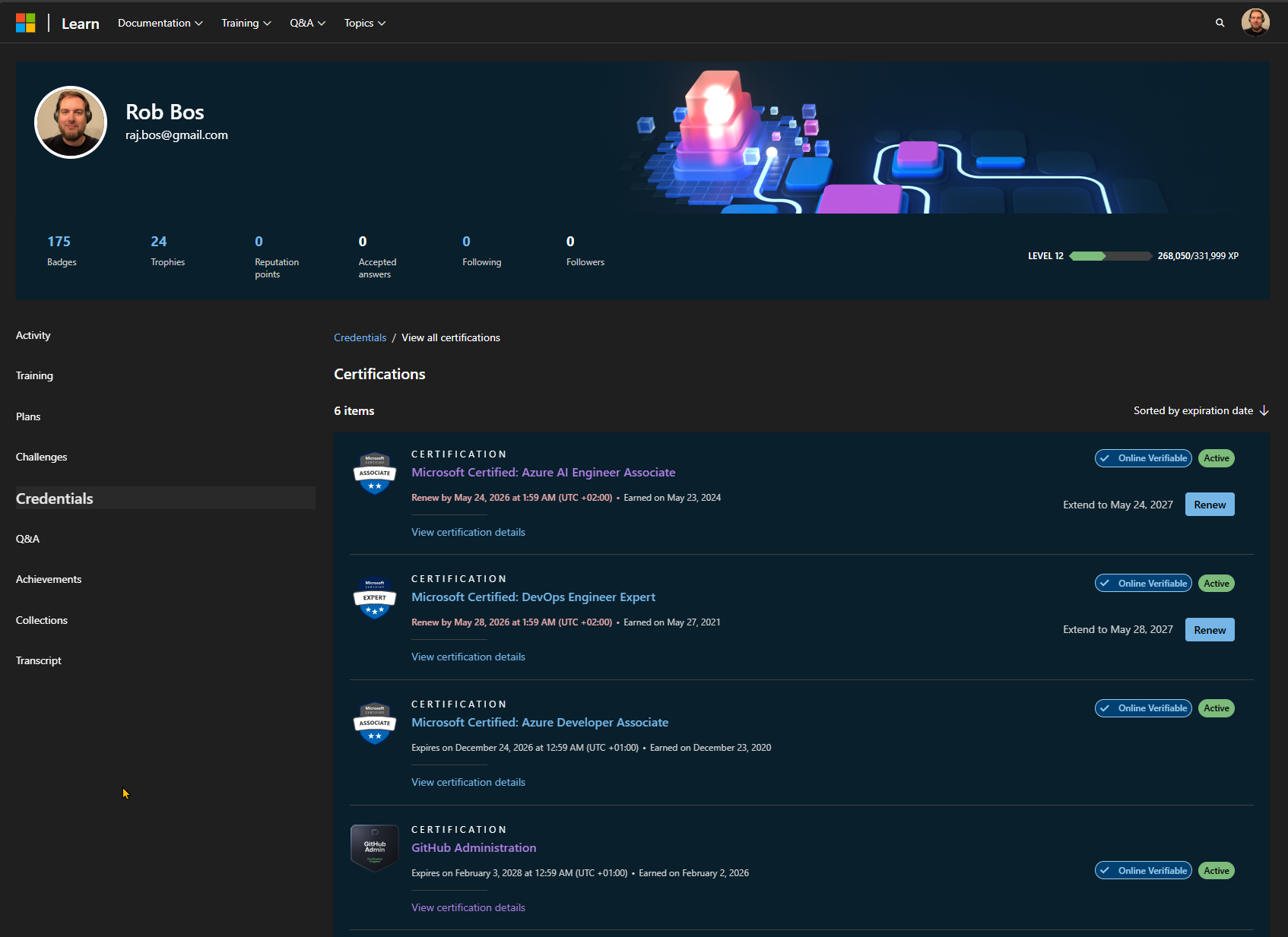
- Find the certification you want to add to Credly and click on “View certification details”.
- Copy the url from the browser.
Credly steps
- Log in to your Credly account.
- Navigate to your profile in the acccount drop down menu.
- Click on “Upload other badges” button.
- Use the badge url option at hte bottom of the screen and paste in the url you copied from Microsoft Learn.
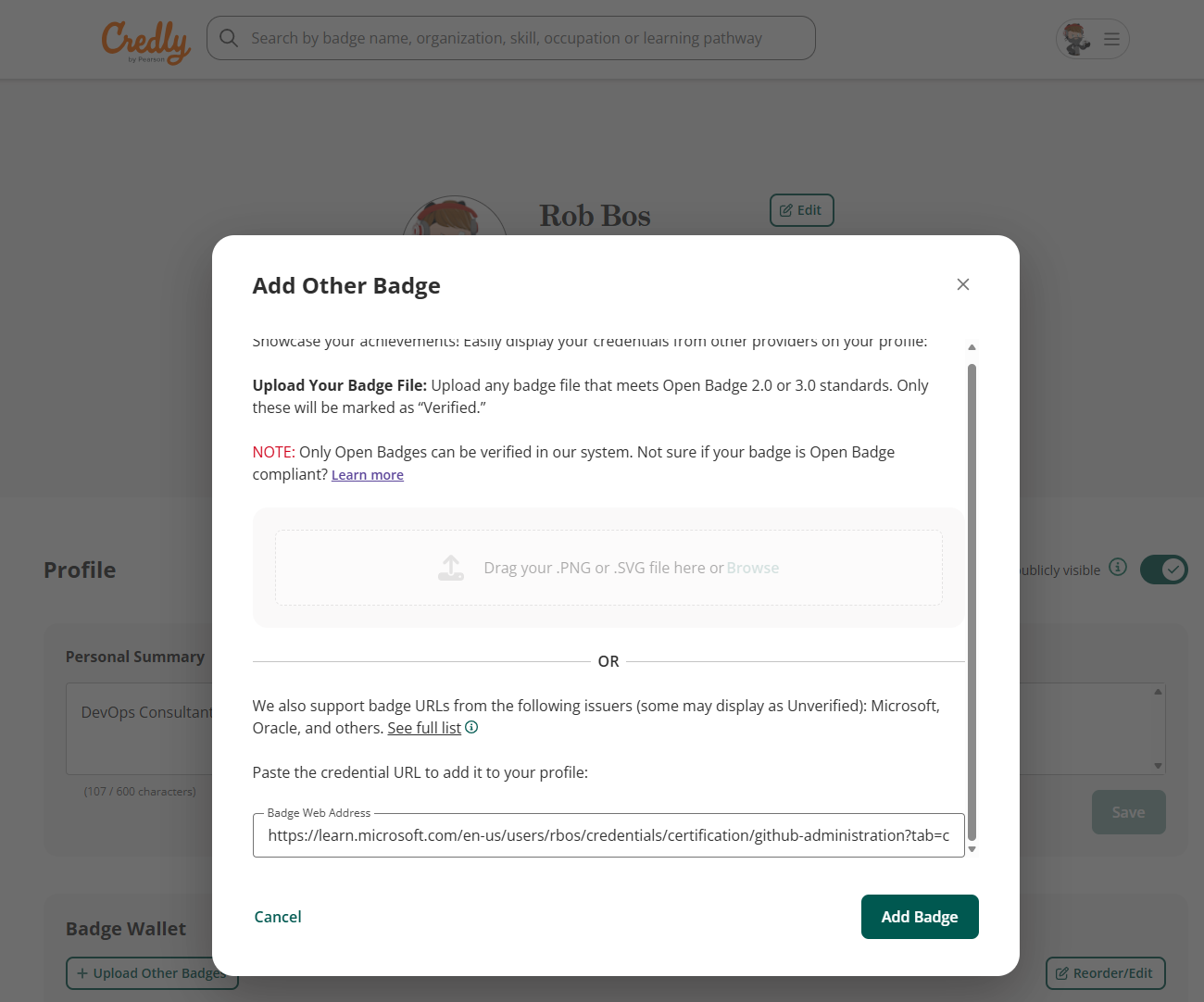
- Click on “Add Badge” button and wait for the validation to complete.
Wait until the actual bafdge shows up in your Credly profile, takes over an hour in my experience.