GitHub Copilot - Coding Agent Examples Walkthrough
In this post, I will walk you through an example of different ways to use the GitHub Copilot Coding Agent to automate a coding task. The Coding Agent is a powerful feature that leverages AI to help you write, review, and refactor code more efficiently. It uses a prompt coming from one of the locations below and will then have a runtime inside of a secured GitHub Actions environment to execute the steps it needs to take to complete your request, with for example a locked down network configuration to prevent it from doing weird things in your name. If you want to know more about the architecture and security model, check out the official documentation: GitHub Copilot Coding Agent.
Places where you can start a Coding Agent session from:
- Your editor
- Agent Task panel in a repo context
- Repository creation through the UI
- Chat interface in github.
- GitHub Phone app
I will show some examples of these below.
Your editor
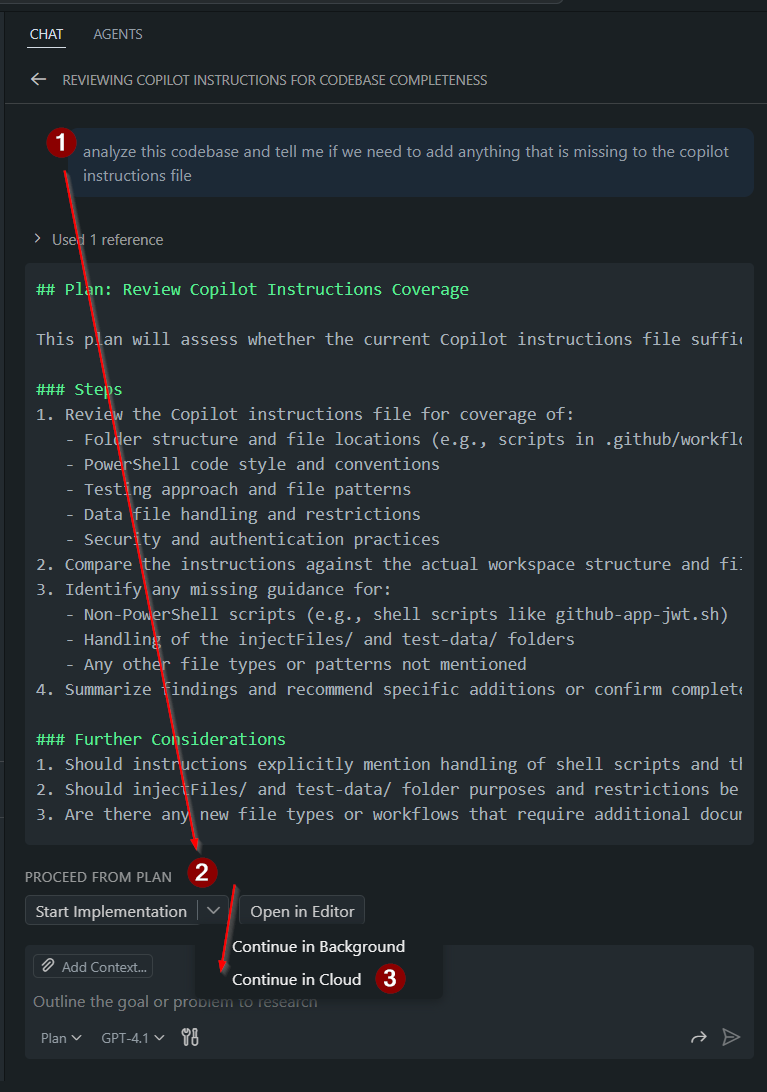
When you are in a Copilot Chat conversation you can gather all the context you need and then write the next prompt which can then be “hand off to Cloud Agent”.
Note: At the end of December 2025 when this post was written, this feature was only available in VS Code.
Here is an example screenshot of that experience when staring in Plan Mode and handing it off to Agent Mode:
Here is an example from the chat in Agent Mode itself:
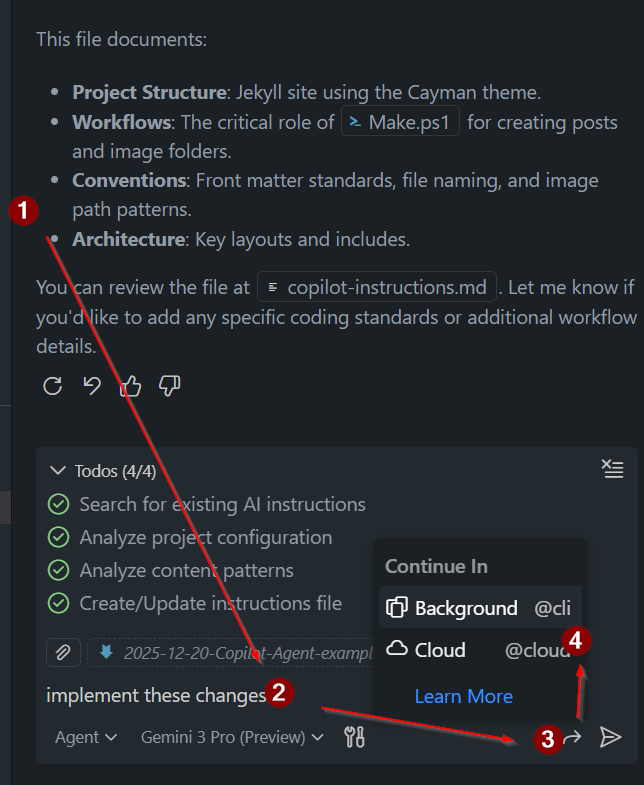
Note: The “Continue in Background” button, which will let you start the same prompt with context in the Copilot CLI, which will execute in the background and notify you when done.
Agent Task panel in a repo context
On github.com you have an “Agent Tasks” tab in the UI, which allows you to start a Coding Agent session in the context of that repository. This is useful when you want to automate tasks related to that specific codebase. I use this all the time to let it work on for example a failed GitHub Actions workflow, where I can be very specific about what I want it to do.
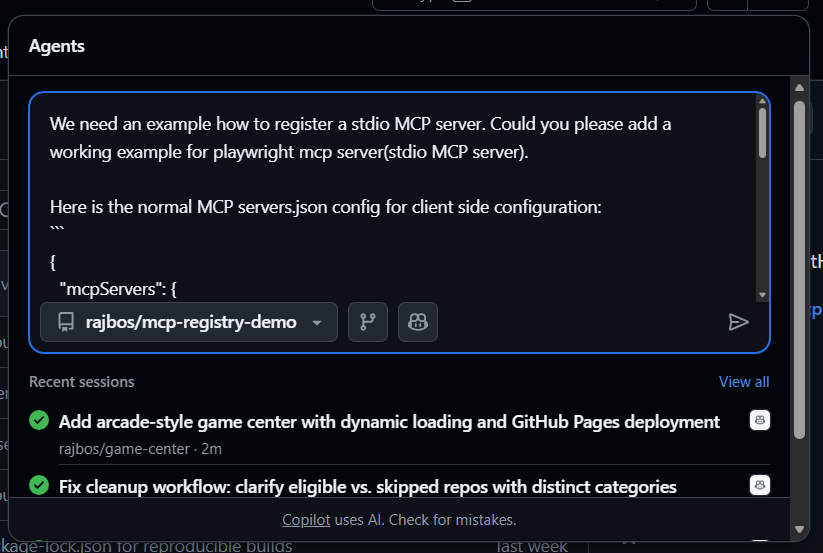
Some example prompts that I regularly use in this context:
1. Fix the failing workflow
Look at the failing workflow here <link to the url for the workflow> or just <name of the workflow or job>. Find out why this is failing first and define if this error makes sense. If we need to fix something in the code or the workflow, do so. If we should handle this differently, explain what we should do and suggest a better approach.
2. Check multiple workflow runs
Look at the last two workflow runs for <name of the workflow>. I notice that the number of executions in the log stays the same, so it seems we are not getting new data. Find out why this is happening and fix the code or workflow to ensure we get new data on each run.
3. Add extra functionality to the repo:
I have an example repo for hosting your own Private MCP Registry which is needed in especially an Enterprise setting. I got a question from someone how you would add a stdio type of MCP server to the configuration. So I started working on a prompt for that:
We need an example how to register a stdio MCP server. Could you please add a working example for playwright mcp server(stdio MCP server).
Because I know it is helpful to give it some extra context, I also added this to the prompt after doing a quick web search for the relevant documentation:
Here is the normal MCP servers.json config for client side configuration:

{
  "mcpServers": {
    "playwright": {
      "type": "local",
      "command": "npx",
      "tools": [
        "*"
      ],
      "args": [
        "@playwright/mcp@latest"
      ]
    }
  }
}
Since my repository also has a servers.json in it, I wanted to prevent the model from getting confised by that, so I find it a good idea to add just a bit more context by checking the MCP Private Regstry documentation. I quick web search brought me to the GitHub repository for the MCP Registry: modelcontextprotocol/registry. Instead of looking for things myself, I asked the Copilot Web Chat to find the relevant documentation for me:
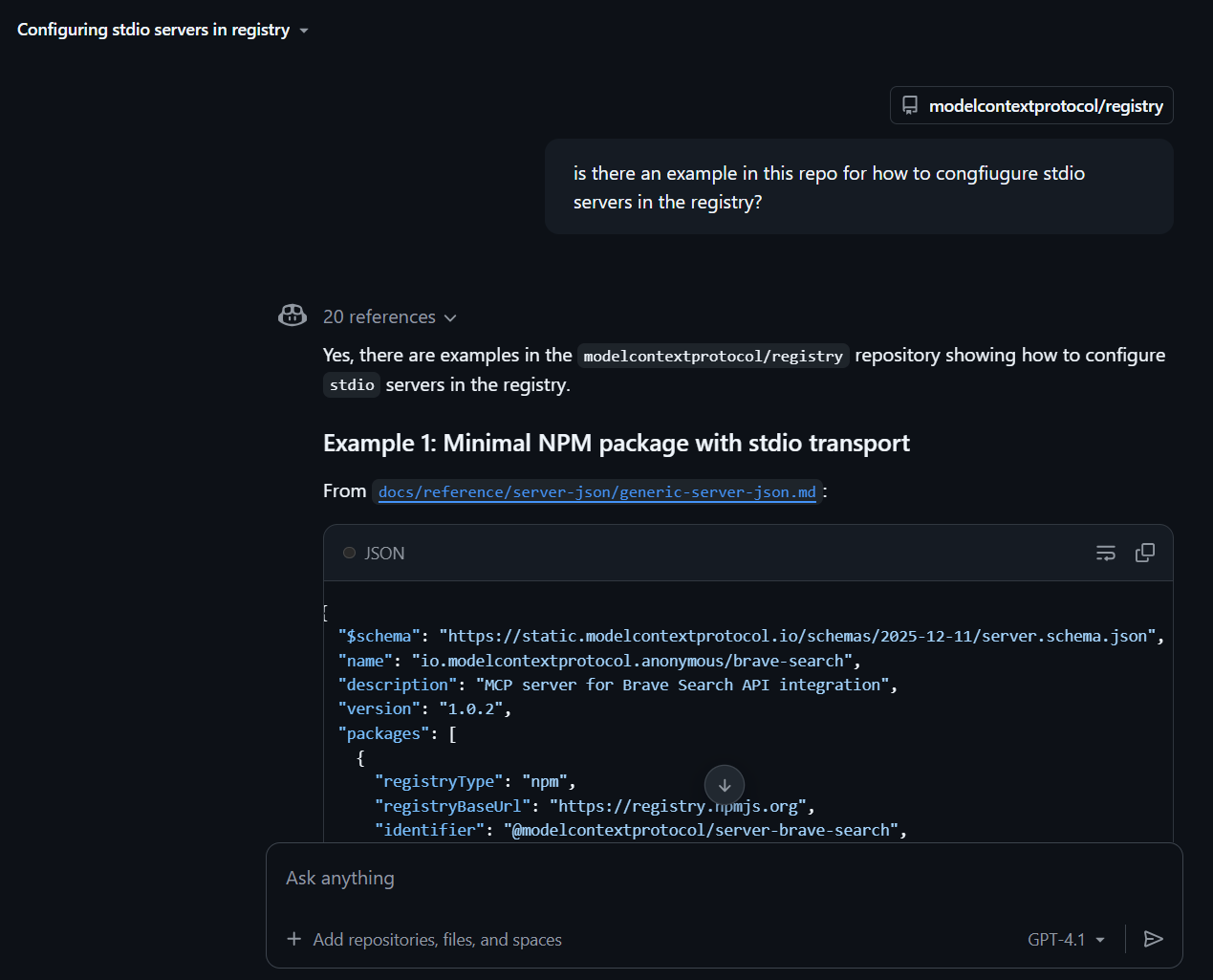
This brought me to the right file: docs/reference/server-json/generic-server-json.md#L39-L62 with even the relevant line numbers included!
So this extra context was added to the prompt as well:
Use the example from: https://github.com/modelcontextprotocol/registry/blob/9afbaacdfdf8966d73de09a795076fb0386c5c3d/docs/reference/server-json/generic-server-json.md#L39-L62
The result of that PR can be found here: PR link. Note the original prompt is shown in the PR body as well. I apreciate that a lot as it shows how it transformed the PR goal from my initial prompt by leveraging additional information it found during the execution. It can also be a great way to learn how to write better prompts by seeing how it interpreted your original request, or learn how other folks approach this.
Repository creation through the UI
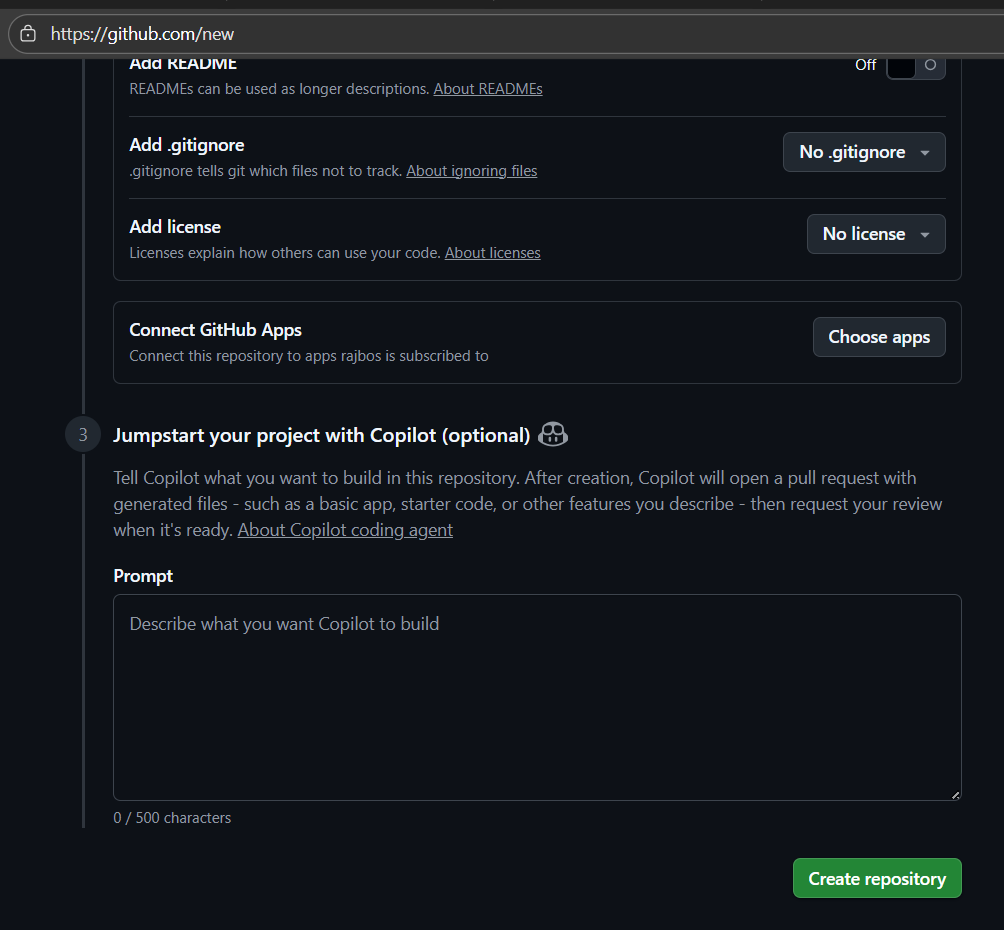
A lot of folks have not seen this yet, but when creating a new repository through the GitHub UI, you can also add a prompt for the Coding Agent to execute right away in the new repository context. The new repo will be created with the things you configure, and then Coding Agent will start working on your prompt right away by creating a new PR. This is super useful for bootstrapping new projects with specific requirements. Do note at the bottom left that you only have 500 characters for the prompt. I use this for initial scaffolding all the time.
Chat interface in github.com
Last but not least, you can also start a Coding Agent session directly from the Chat interface on github.com. This is useful when you want to have a conversation about a specific coding task and then hand it off to the Coding Agent to execute it. You can provide context in the chat and then use the “Continue in Cloud” button to start the Coding Agent session.
I use this either from the Chat buton in the top bar to find information in the repo, setup my context, and then prompt with something like:
Please create a new branch and add a GitHub Actions workflow that does X, Y, and Z. Make sure to follow best practices and include any necessary secrets or configurations.
Or just simply:
Hand off this task to Coding Agent.
This will trigger a background call with the conversation of you current session, and send that into the Coding Agent. Often the UI will either tell you the hand off was successful (not always does it ask for confirmation if it needs to create the task, seems to be dependent on where you trigger this task from), or not.
Also note that the chat window then often shows a direct button to go to that new agent session, but that is not always the case. Seems to be linked to the place where you trigger this from or the prompt itself.
If you do not see that button, you can always go to the “Agent Tasks” button in the top bar to find your new task, or go to the Copilot/Agents page.
GitHub Phone app
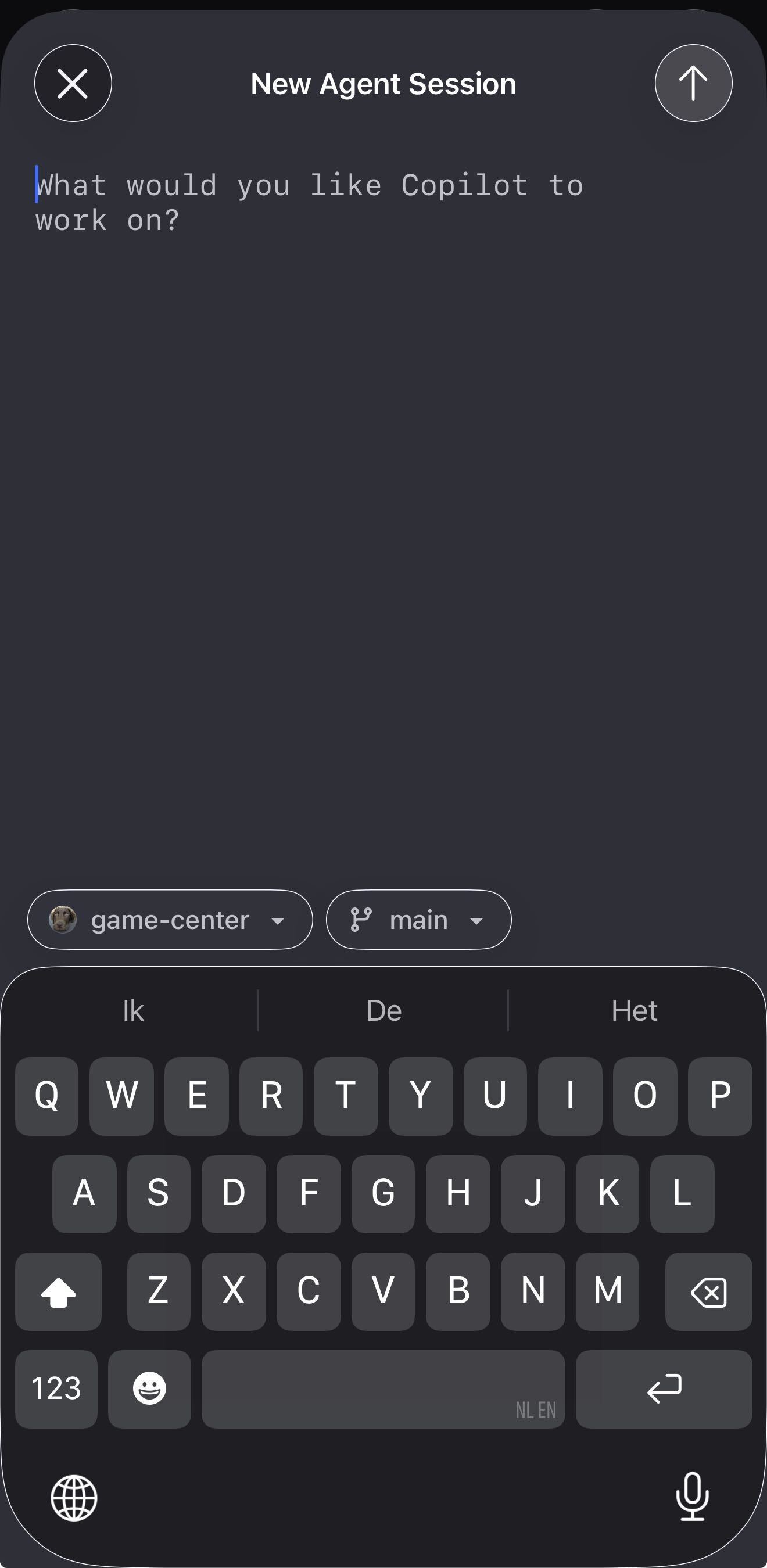
The phone app of GitHub Copilot lets you do exactly the same as the web chat interface on github.com. You can have a conversation in the chat, and then hand it off to the Coding Agent to execute your request in the context of the repository you are working with, or just directly start a new Coding Agent session from the Agent Tasks panel on the phone app: